5. Operational Procedures
5.1. Opening the dashboard on a cluster
Use this link to understand the process.
https://docs.aws.amazon.com/eks/latest/userguide/dashboard-tutorial.html
Put the dashboard into the cluster:
kubectl apply -f https://raw.githubusercontent.com/kubernetes/dashboard/v2.3.1/aio/deploy/recommended.yaml
Do step 2 to create the yaml file to create the eks admin account
Then run kubectl proxy
kubectl -n kube-system describe secret $(kubectl -n kube-system get secret | grep eks-admin | awk ‘{print $1}’)
use the token
5.2. How to connect to application cluster | blockchain cluster VPC and enable SSH access to bastion host
The entry point to bastion host is through network load balancer and it can be configured either
as
Public:
When NLB is provisioned as public, it enables a public endpoint to use to access it. However still traffic rules need to be allowed for specific IP address | CIDR block for the bastion host’s security group to control who can access the hosts using SSH
Private:
When NLB is provisioned as private, it enables only a private endpoint to access bastion host. Even for private NLB, still traffic rules are required to be allowed for specific CIDR | IP address for bastion host’s security group to control who can access hosts through SSH.
Once NLB is provisioned as private | public during resource provisioning, the following steps would be required to enable network connectivity before performing SSH access to the bastion hosts.
Bastion host’s endpoint format:
NLB FQDN: <node-type>-<env-type>-<app | blk>-bastion.<domain>
Example: carr-dev-app-bastion.aaisdirect.com | carr-dev-blk-bastion.aaisdirect.com
Note: Refer to route 53 Public | Private hosted zones to identify the actual endpoint after resource provisioning.
Scenario 1: Source IP address | CIDR block is from another VPC in AWS
Refer to the below link to setup VPC peering between source IP address/CIDR block VPC network to application | blockchain cluster VPC network
https://docs.aws.amazon.com/vpc/latest/peering/what-is-vpc-peering.html
Scenario 2: Source IP address | CIDR block is from remote private network to AWS
Establish a network connectivity between private network to AWS application | blockchain cluster VPC. There are multiple options like Direct Connect, VPN etc., refer to the below link.
Scenario 3: Source IP address | CIDR block is from public network outside AWS
This option does not require any specific network establishment between source to destination as it is from public internet.
Once the network connectivity is established, it is required to allow traffic rules in bastion host’s security group for specific IP address | CIDR block to for SSH access.
Note: All these rules are required to be updated through terraform input files and update AWS resources not directly in AWS console to keep the terraform desired state consistent.
The following are the input references to update traffic rules for SSH.
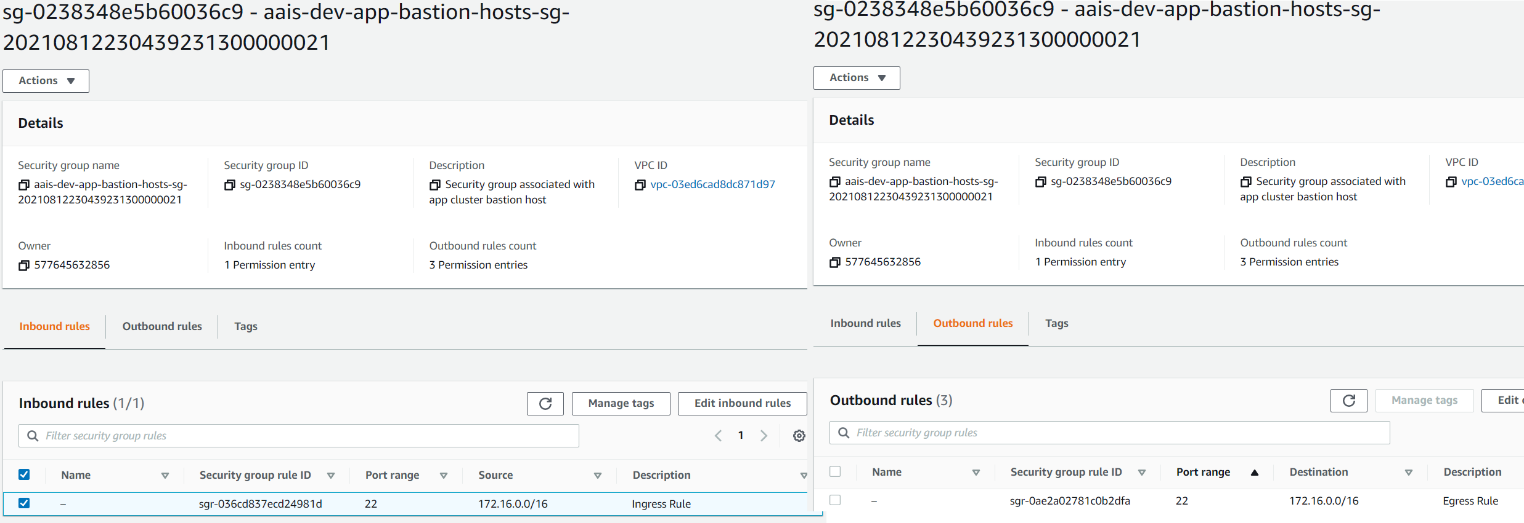
#application cluster bastion host specifications #inbound app_bastion_sg_ingress = [{rule=”ssh-tcp”, cidr_blocks = “<ipaddress | cidr_block>”}] #outbound blk_bastion_sg_egress = [{rule=”ssh-tcp”, cidr_blocks = “<ipaddress | cidr_block>”}]
#blockchain cluster bastion host specifications #inbound blk_bastion_sg_ingress = [{rule=”ssh-tcp”, cidr_blocks = “<ipaddress | cidr_block>”}] #outbound blk_bastion_sg_egress = [{rule=”ssh-tcp”, cidr_blocks = “<ipaddress | cidr_block>”}]
Sample security rules applied
5.3. How to SSH into bastion hosts in application | blockchain cluster VPC
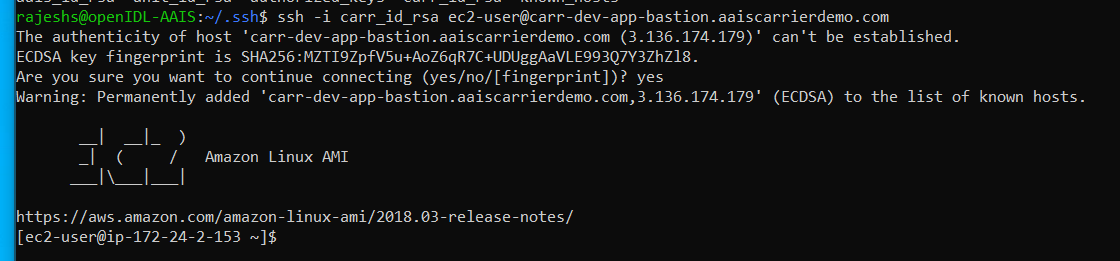
The bastion hosts are configured with custom SSH keys
2. Ensure the relevant SSH private keys are available to successfully authenticate and connect
3. The bastion hosts are setup in an auto scaling group to ensure a desired capacity is ensured to SSH into for administrative tasks
4. The bastion host are positioned with a network load balancer in the front serving SSH traffic
5. Identify the NLB FQDN to SSH to the bastion host in application | blockchain cluster VPC
6. Either refer to the below format to identify the FQDN of endpoint to reach bastion host or refer to route 53 hosted zones records.
NLB FQDN: <node-type>-<env-type>-<app | blk>-bastion.<domain>
Example: carr-dev-app-bastion.aaisdirect.com | carr-dev-blk-bastion.aaisdirect.com
Once you have the network access to the bastion hosts and relevant information like SSH private key and FQDN, you all set to successfully connect to bastion host. The below a sample screen shot for reference.
5.4. Steps to configure AWS CLI and use KUBECTL to manage EKS cluster
AWS CLI and Kubectl can be configured on any systems which has access to Internet. When the clusters are kept publicly exposed then they would be able to manage using kubectl from anywhere. In case it is turned private cluster, then managing the cluster needs to be from the bastion host.
5.4.1. Step1: Configure AWS CLI
SSH to the bastion host
Go to user home directory Example: $ cd /home/ec2-user/
3. Create a directory named “.aws” under user home directory. Example: $ mkdir /home/ec2-user/.aws
4. Create or update file named config with the information referring to below sample
Config file: Update profile for IAM user and IAM role that this user is going to assume. The sample is below.
Example Path: /home/ec2-user/.aws/config
[iam-user] region=us-east-2 output=json [iam-role] region=us-east-2 output=json source_profile=iam-user |
|---|
5. Update credentials file in the same directory by referring to below sample.
Example Path: /home/ec2-user/.aws/credentials
[iam-user] aws_access_key_id = <access_key> aws_secret_access_key = <secret_key> [iam-role] role_arn = <aws_role_arn> source_profile = iam-user external_id = <external_id> |
|---|
6. Once the config file and credentials file are updated under “.aws” directory in the user profile. Then go to command line and export the role profile to get the setup IAM user to assume that IAM role.
$ export AWS_PROFILE=iam-role
7. To validate that the right IAM user and the user is assumed IAM role correctly, perform below command and validate the results.
[ec2-user@ip-172-16-1-90 .aws]$ aws sts get-caller-identity { “UserId”: “AROAYM7S43VMIRGVMSVN6:botocore-session-1629220738”, “Account”: “577645632856”, “Arn”: “arn:aws: sts::577645632856:assumed-role/terraform_automation/botocore-session- 1629220738” } |
|---|
Once AWS CLI is configured, it is all set to manage EKS using kubectl
5.4.2. Step2: Using kubectl to manage EKS
1. Run the below command to setup kubeconfig. Please note that you need to ensure you are on right bastion host and setting up the kubeconfig for right EKS cluster. (Example: from bastion host in app cluster VPC configure for app EKS cluster)
[ec2-user@ip-172-16-1-90 .aws]$ aws eks update-kubeconfig –region us-east-2 –name aais-dev-app-cluster
Updated context arn:aws:eks:us-east-2:577645632856:cluster/aais-dev-app-cluster in /home/ec2-user/.kube/config
2. Now all set to manage EKS cluster using kubectl. Let us run few commands.
[ec2-user@ip-172-16-1-90 .aws]$ kubectl get svc NAME TYPE CLUSTER-IP EXTERNAL-IP PORT(S) AGE kubernetes ClusterIP 172.20.0.1 <none> 443/TCP 4d18h [ec2-user@ip-172-16-1-90 .aws]$ kubectl get nodes -A NAME STATUS ROLES AGE VERSION ip-172-16-3-162.us-east-2.compute.internal Ready <none> 4d18h v1.19.6-eks-49a6c0 ip-172-16-3-191.us-east-2.compute.internal Ready <none> 4d18h v1.19.6-eks-49a6c0 [ec2-user@ip-172-16-1-90 .aws]$ kubectl get pods -A NAMESPACE NAME READY STATUS RESTARTS AGE kube-system aws-node-2nlxt 1/1 Running 0 4d18h kube-system aws-node-fv4h4 1/1 Running 1 4d18h kube-system coredns-56b458df85-r9zjl 1/1 Running 0 4d18h kube-system coredns-56b458df85-zh29k 1/1 Running 0 4d18h kube-system kube-proxy-lz5kn 1/1 Running 0 4d18h kube-system kube-proxy-wqkwj 1/1 Running 0 4d18h |
5.5. How to allow an IAM user to administer EKS cluster using kubectl
While deploying the AWS resources using GitHub actions, the environment is pre-configured with necessary IAM policies, IAM role, IAM group and EKS config-map configuration with relevant IAM role. Hence to enable someone to administer EKS cluster get the IAM user added to the IAM group as described below which allows the user to assume the mentioned IAM role to administer EKS cluster.
Login to AWS console and go to IAM
2. Go to User Groups and open <node_type>-<env_type>-eks-admin (Example: aais-dev-eks-admin)
Add any IAM user who needs permission to administer EKS cluster
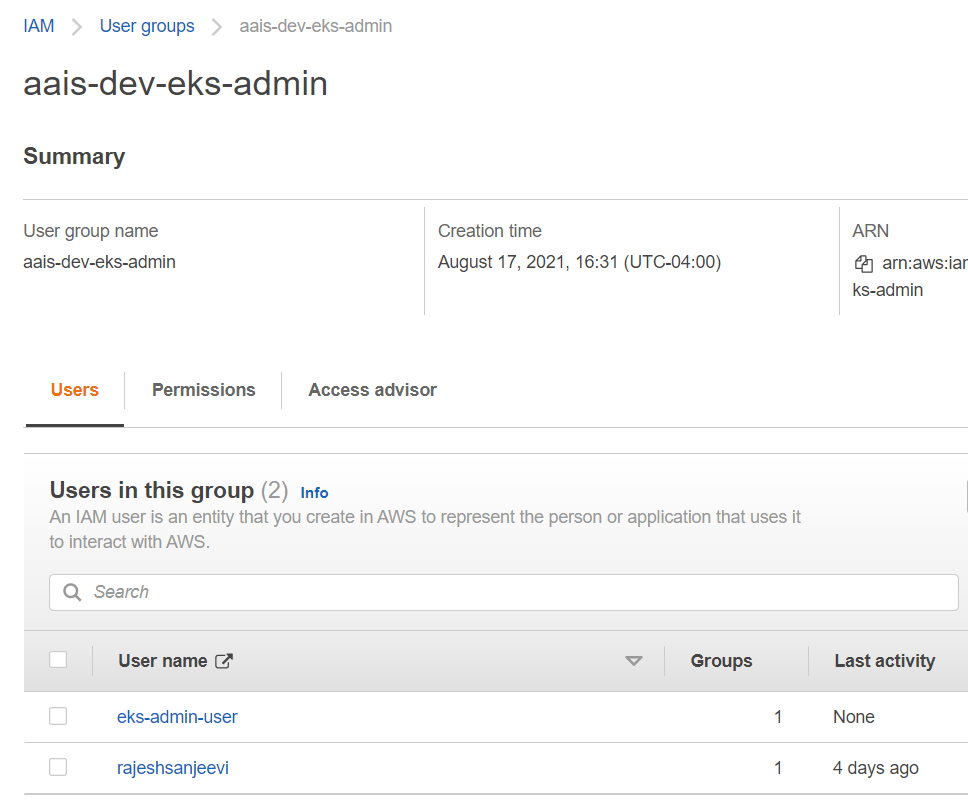
4. Now the added user has permission to assume the below mentioned role to administer EKS cluster.
Role ARN: arn:aws:iam::<account_number>:role/<node_type>-<env_type>-eks-admin
Example: arn:aws:iam::<acc_number>:role/carr-dev-eks-admin
5. Once permissions are enabled, the IAM user needs to setup AWS CLI with credentials and setup required user profile to assume IAM role as a first step before the user can perform EKS cluster related tasks using kubectl commands. For EKS access through the AWS console you will need to switch roles to the role used above. The first time Switch Roles is selected from the account drop-down in the console a dialogue box will appear. Insert the account number, role used from above and an arbitrary Display Name.
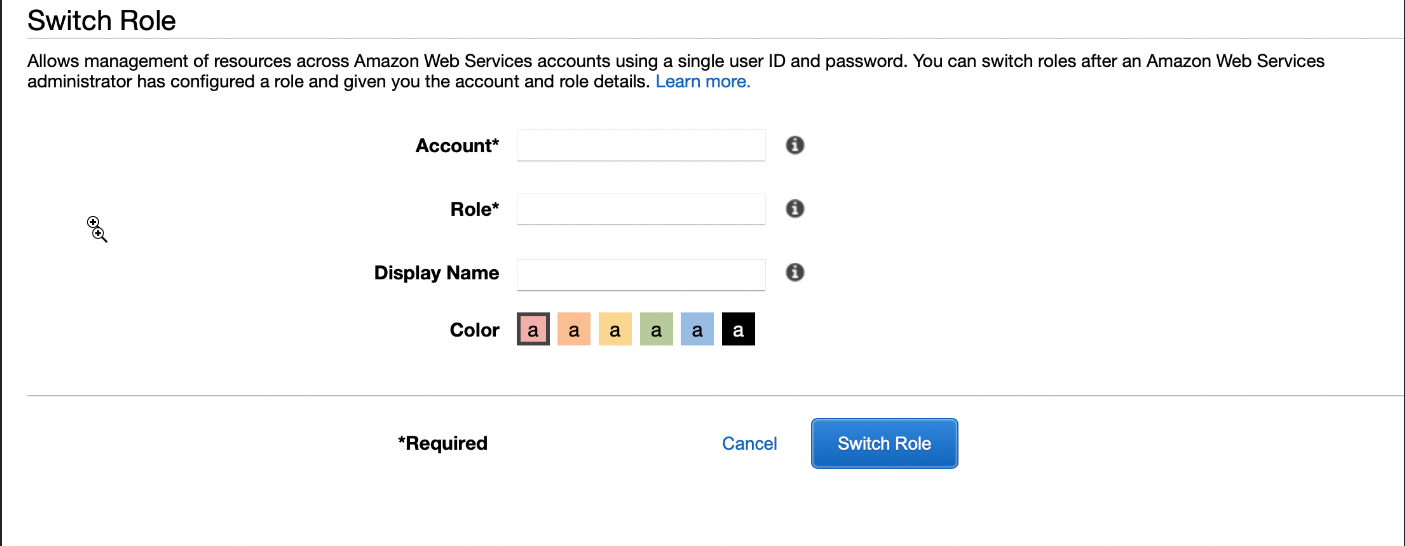
For subsequent access the role will appear under Role History and you can switch without further need to fill out the dialogue box:
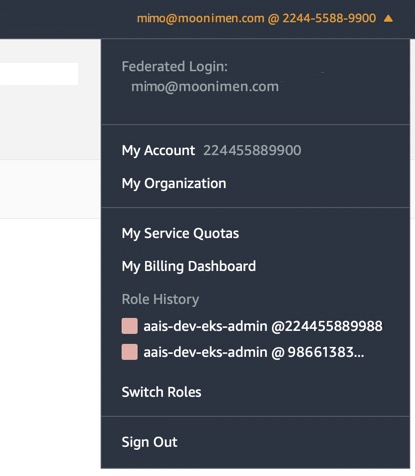
Note: Refer to previous section to setup AWS CLI and use kubectl
5.6. How to review resources provisioned by terraform through GitHub actions
Using AWS CLI run the below command with specific tag filters.
[ec2-user@ip-172-16-1-90 .aws]$ aws resourcegroupstaggingapi get-resources –tag-filters Key=Managed_by,Values=terraform –region us-east-2 | grep -i “resourcearn”
“ResourceARN”: “arn:aws:cloudtrail:us-east-2:577645632856:trail/aais-dev-cloudtrail”,
“ResourceARN”: “arn:aws:ec2:us-east-2:577645632856:dhcp-options/dopt-04ba9b367d5efe0e1”,
“ResourceARN”: “arn:aws:ec2:us-east-2:577645632856:dhcp-options/dopt-00fadbc4f0e5a3d53”,
“ResourceARN”: “arn:aws:ec2:us-east-2:577645632856:instance/i-00d0d10e7e6cb0c08”,
“ResourceARN”: “arn:aws:ec2:us-east-2:577645632856:instance/i-00ac7692f976ab907”,
“ResourceARN”: “arn:aws:ec2:us-east-2:577645632856:key-pair/key-0d0de4aa108f2fa94”,
“ResourceARN”: “arn:aws:ec2:us-east-2:577645632856:natgateway/nat-0c9e12f0c2285474c”,
“ResourceARN”: “arn:aws:ec2:us-east-2:577645632856:network-acl/acl-04ba2bb0f7d3c8dc8”,
“ResourceARN”: “arn:aws:ec2:us-east-2:577645632856:route-table/rtb-06c67fbf6aa041f64”,
“ResourceARN”: “arn:aws:ec2:us-east-2:577645632856:security-group/sg-0a386e25c866edcbe”,
“ResourceARN”: “arn:aws:ec2:us-east-2:577645632856:security-group/sg-090604fcffe913a3b”,
“ResourceARN”: “arn:aws:ec2:us-east-2:577645632856:security-group/sg-06d74c4650dacf4a9”,
“ResourceARN”: “arn:aws:ec2:us-east-2:577645632856:subnet/subnet-098b9bf30e562036f”,
“ResourceARN”: “arn:aws:ec2:us-east-2:577645632856:transit-gateway/tgw-0dbd97b60d1d68942”,
“ResourceARN”: “arn:aws:ec2:us-east-2:577645632856:vpc-endpoint/vpce-0d92a060726316ea8”,
“ResourceARN”: “arn:aws:ec2:us-east-2:577645632856:vpc-endpoint/vpce-0abf3c9006bb4e5c9”,
“ResourceARN”: “arn:aws:ec2:us-east-2:577645632856:vpc-endpoint/vpce-0cf334478b609c67c”,
“ResourceARN”: “arn:aws:ec2:us-east-2:577645632856:vpc-flow-log/fl-0be9c94761b695433”,
“ResourceARN”: “arn:aws:eks:us-east-2:577645632856:cluster/aais-dev-app-cluster”,
“ResourceARN”: “arn:aws:elasticloadbalancing:us-east-2:577645632856:listener/net/aais-dev-blk-bastion-
Note: The results are truncated for readability.
5.7. Updating EKS cluster to be private after resource provisioning (optional)
Due to below two factors the EKS API endpoint is public.
1. EKS control plane is AWS managed and hence its API endpoint is enabled both private and public access
2. Since GitHub actions pipeline is used which is cloud-based service, it requires EKS to be public post provisioning EKS to perform additional resource provisioning and management like storage class, ha-proxy and config-map
Hence once the resources are provisioned, the EKS may be turned to private for additional access limitations using below AWS CLI command.
Command to turn EKS API endpoint private:
$eksctl utils update-cluster-endpoints –cluster=<cluster_name> –private-access=true –public-access=false –approve
Note: However, when there is need to perform any updates to the resources through the GitHub actions pipeline, the cluster needs to be turned public temporarily until GitHub pipeline completes the run before turning it back to private.
Command to turn EKS API endpoint Public:
$eksctl utils update-cluster-endpoints –cluster=<cluster_name> –private-access=true –public-access=true –approve
5.8. Key AWS resources and its significance
The detailed list of AWS resources that gets provisioned during node resources deployment and its significance are documented referencing to a node type AAIS in development in us-east-2 region. The same applies to other node types like analytics | carrier node.
Network |
Description |
|---|---|
aais-dev-app-vpc |
Application VPC |
aais-dev-blk-vpc |
Blockchain VPC |
Subnets |
Description |
|---|---|
aais-dev-a pp-vpc-private-us-east-2a |
Private subnet 1 in app VPC |
aais-dev-a pp-vpc-private-us-east-2b |
Private subnet 2 in app VPC |
aais-dev- app-vpc-public-us-east-2a |
Public subnet 1 in app VPC |
aais-dev- app-vpc-public-us-east-2b |
Public subnet 2 in app VPC |
aais-dev-b lk-vpc-private-us-east-2a |
Private subnet 1 in blk VPC |
aais-dev-b lk-vpc-private-us-east-2b |
Private subnet 2 in blk VPC |
aais-dev- blk-vpc-public-us-east-2a |
Public subnet 1 in blk VPC |
aais-dev- blk-vpc-public-us-east-2b |
Public subnet 2 in blk VPC |
Route Tables |
Description |
|---|---|
aais-dev-app-vpc |
Main route table – app VPC |
aais-dev-app-vpc-private |
Route table – Private subnets – app VPC |
aais-dev-app-vpc-public |
Route table – Public subnets – app VPC |
aais-dev-blk-vpc |
Main route table – blk VPC |
aais-dev-blk-vpc-private |
Route table – Private subnets – blk VPC |
aais-dev-blk-vpc-public |
Route table – Public subnets – blk VPC |
Internet Gateway |
Description |
|---|---|
aais-dev-app-vpc (igw) |
Internet gateway – app VPC |
aais-dev-blk-vpc (igw) |
Internet gateway – blk VPC |
NAT Gateway |
Description |
|---|---|
aais-dev-app-vpc-us-east-2a |
NAT gateway – app VPC |
aais-dev-blk-vpc-us-east-2a |
NAT gateway – blk VPC |
Security Groups |
Description |
|---|---|
Aais-dev-app-bastion-hosts-sg |
Security group used with bastion host in app VPC |
Aais-dev-blk-bastion-hosts-sg |
Security group used with bastion host in blk VPC |
Aais -dev-app-eks-worker-node-group-sg |
Security group used with EKS worker node group.This has all default/standard traffic rules coded in (app VPC) |
Aais-d ev-app-eks-workers-app-traffic-sg |
Security group used with EKS worker node group for custom traffic rules. (app VPC) |
Aais -dev-blk-eks-worker-node-group-sg |
Security group used with EKS worker node group. This has all default/standard traffic rules coded in (blk VPC) |
Aais-de v-blk-eks-workers-node-traffic-sg |
Security group used with EKS worker node group for custom traffic rules. (blk VPC) |
Aais-dev-app-eks-ctrl-plane-sg |
Security group used to control traffic with EKS control plane (app VPC) |
Aais-dev-blk-eks-ctrl-plane-sg |
Security group used to control traffic with EKS control plane (blk VPC) |
Eks-cluster -sg-aais-dev-app-cluster-<random> |
Self-Security group controls EKS traffic between control plane and worker nodes (app VPC) |
Eks-cluster -sg-aais-dev-blk-clsuter-<random> |
Self-Security group controls EKS traffic between control plane and worker nodes (blk VPC) |
Aais-dev-app-vpc-default-sg |
Default VPC security group (app VPC) |
Aais-dev-blk-vpc-default-sg |
Default VPC security group (blk VPC) |
Transit Gateway |
Description |
|---|---|
aais-dev-central-tgw |
Transit gateway used with app VPC and blk VPC |
Transit Gateway Attachments |
Description |
|---|---|
Aais-dev-central-tgw-app-vpc |
App VPC attached to transit gateway |
Aais-dev-central-tgw-blk-vpc |
Blk VPC attached to transit gateway |
Transit Gateway Route Tables |
Description |
|---|---|
aais-dev-central-tgw (app vpc route) |
TGW route table used to route traffic from app VPC to blk VPC (only private subnets) |
Aais-dev-central-tgw (blk vpc route) |
TGW route table used to route traffic from blk VPC to app VPC (only private subnets) |
EC2 |
Description |
|---|---|
Aais-dev-blk-bastion-host-asg |
Bastion host through autoscaling group in blk VPC |
Aais-dev-app-bastion-host-asg |
Bastion host through autoscaling group in app VPC |
Aais-dev-blk-cluster-aa is-dev-blk-worker-group-1-eks-asg |
Worker Group 1 through autoscaling group – blk EKS |
aais-dev-blk-cluster-aa is-dev-blk-worker-group-2-eks_asg |
Worker Group 2 through autoscaling group – blk EKS |
aais-dev-app-cluster-aa is-dev-app-worker-group-2-eks_asg |
Worker Group 1 through autoscaling group – app EKS |
aais-dev-app-cluster-a ais-dev-app-worker-group-1-eks_as |
Worker Group 2 through autoscaling group – app EKS |
Elastic IP addresses |
Description |
|---|---|
Aais-dev-app-vpc-us-east-2a |
EIP used by NAT gateway in app VPC |
Aais-dev-blk-vpc-us-east-2a |
EIP used by NAT gateway in blk VPC |
SSH Key Paris |
Description |
|---|---|
Aa is-dev-app-bastion-hosts-external |
Key pairs used with bastion host in app VPC |
Aa is-dev-blk-bastion-hosts-external |
Key pairs used with bastion host in blk VPC |
Aais- dev-app-eks-worker-nodes-external |
Key pairs used with worker nodes in app VPC |
Aais- dev-blk-eks-worker-nodes-external |
Key pairs used with worker nodes in blk VPC |
Network Load Balancers |
Description |
|---|---|
Aais-dev-app-bastion-hosts-nlb |
NLB used with bastion host in app VPC |
Aais-dev-blk-bastion-hosts-nlb |
NLB used with bastion host in blk VPC |
<random-name> (deployed by ha-proxy ingress) |
NLB used with app EKS |
<random-name> (deployed by ha-proxy ingress) |
NLB used with blk EKS |
Auto Scaling Groups |
Description |
|---|---|
Aais- dev-app-bastion-host-asg-<random> |
ASG used by bastion host in app VPC |
Aais- dev-blk-bastion-host-asg-<random> |
ASG used by bastion host in blk VPC |
Aais-dev-app-cluster-aa is-dev-app-worker-group-1<random> |
ASG used by worker group 1 in app VPC (EKS) |
Aais-dev-app-cluster-aa is-dev-app-worker-group-2<random> |
ASG used by worker group 2 in app VPC (EKS) |
Aais-dev-blk-cluster-aa is-dev-app-worker-group-1<random> |
ASG used by worker group 1 in blk VPC (EKS) |
Aais-dev-blk-cluster-aai s-dev-app-worker-group-2-<random> |
ASG used by worker group 2 in blk VPC (EKS) |
EKS |
Description |
|---|---|
Aais-dev-app-cluster |
EKS cluster in app VPC |
Aais-dev-blk-cluster |
EKS cluster in blk VPC |
Cognito User Pool |
Description |
|---|---|
Aais-dev-openidl |
Cognito user pool used to manage user identities |
S3 Buckets |
Description |
|---|---|
Aais-node-terraform-state-mgmt |
S3 bucket used to manage terraform state files |
Aais-node-terraform-inputs-mgmt |
S3 bucket used to manage terraform input files |
Aais-dev-cloudtrail-logs |
S3 bucket used to manage cloudtrail logs |
DynamoDB |
Description |
|---|---|
Aa is-node-node-terraform-state-lock |
DynamoDB table used to manage terraform state file locking |
CloudTrail |
Description |
|---|---|
Aais-dev-cloudtrail |
Used to log all api (audit) activities in the specific region the node is deployed |
CloudWatch logs |
Description |
|---|---|
/aws /eks/aais-dev-app-cluster/cluster |
Logs related to EKS cluster in app VPC. The logs retained for 12 months by default |
/aws /eks/aais-dev-blk-cluster/cluster |
Logs related to EKS cluster in blk VPC. The logs retained for 12 months by default |
/aws/vpc-flow/log/<appvpcid> |
App VPC flow logs – by default never expire |
/aws/vpc-flow/logs/<blockvpcid> |
Blk VPC flow logs – by default never expire |
Aais-dev-cloudtrail-logs |
Logs related to CloudTrail (API actions) – the logs retained for 3 months |
Key Management Service |
Description |
|---|---|
Aais-dev-app-eks |
Key used for app EKS encryption |
Aais-dev-blk-eks |
Key used for blk EKS encryption |
Aais-dev-cloudwatch-logs |
Key used for CloudWatch logs encryption related to CloudTrail |
Aais-node-terraform-inputs-mgmt |
Key used for data encryption of S3 bucket used for terraform inputs management |
Aais-node-terraform-state-mgmt |
Key used for data encryption of S3 bucket used for terraform state file management |
S3_key_aais-dev-cloudtrail-logs-1 |
Key used for CloudTrail logs encryption that is stored in S3 bucket |
Aws/dynamodb |
Used to encrypt data in DynamoDB table that is used for state file locking |
Aws/ebs |
Used to encrypt EBS volumes |
Aws/s3 |
Used to encrypt objects in terraform input file management s3 bucket |
IAM Users |
Description |
|---|---|
Aais-terraform |
IAM user used by terraform automation |
Baf-automation |
IAM user used by BAF automation |
IAM Groups |
Description |
|---|---|
Aais-dev-eks-admin |
Group used to assign IAM role permissions to manage EKS clusters |
IAM Roles |
Description |
|---|---|
Aais-dev-app-eks |
Cluster role used by app EKS cluster control plane |
Aais-dev-app-node-group |
Role used by worker nodes in app EKS cluster |
Aais-dev-cloudtrail |
Role used by CloudTrail |
Aais-dev-eks-admin |
Role used to administer EKS cluster |
Aais-tf-automation |
Role used by terraform to provision AWS resources |
Route 53 Hosted Zones |
Description |
|---|---|
<nodedomain> ex: aaisdemo.com (public) |
Public hosted zone that holds DNS mapping |
<nodedomain> ex: aaisdemo.com (private) |
Private hosted zone that holds DNS mapping |
Internal.<nodedomain> ex: internal.aaisdemo.com (private) |
Private hosted zone that holds DNS mapping |
5.9. How to download GitHub actions log file
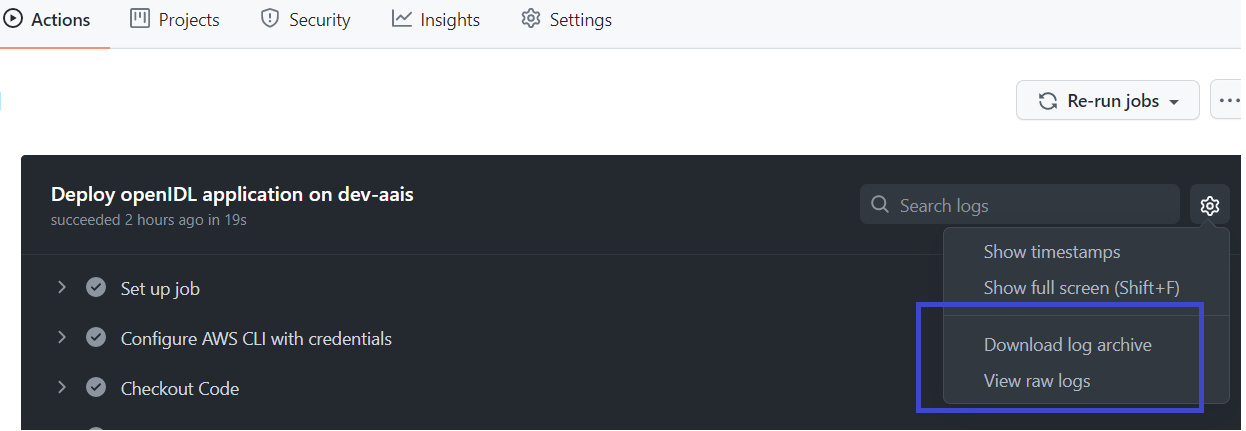
1. In the git hub repository, go to Actions and click on the workflow run and further open the job
Then click on download log/view raw logs as shown below
5.10. Setting up Domain with Doman Registrar
During resource provisioning, there are two options when setting up DNS and its related hosted zones.
Option 1: Setup hosted zone in AWS
When the variable domain_info.r53_public_hosted_zone_required is set to “yes” then the pipeline provisions the hosted zone in AWS and further outputs list of AWS Name Servers which are required to add/update in the domain registered with domain registrar
Option 2: Use hosted zone in 3rd party
When the variable domain_info.r53_public_hosted_zone_required is set to “no” then the pipeline results the list of DNS mappings required to setup in the domain registered with domain registrar.
Hence for both the options, inspect the pipeline outputs and gather the details to update domain accordingly.
5.11. MongoDB Port Forwarding
Setup AWS CLI and log-in using aws_access_key_id and aws_secret_access_key. Alternately setup your aws credentials for the cli in the ~/.aws/credentials file
Set the context for application cluster
Example: >aws eks update-kubeconfig –region <region> –name <app-cluster>
Example: >aws –profile uat-role eks update-kubeconfig –region us-east-1 -name caru-dev-app-cluster
Setup port forward using below command
# kubectl port-forward –namespace database svc/${ORG_NAME}-mongodb-headless 27017:27017
Example: >kubectl port-forward –namespace database svc/caru-mongodb-headless 28017:27017
NOTE: if you are running mongo locally, you should use another port like 28017:27017
Connect to Mongo DB using Compass with following URL
# mongodb://${MONGODB_USERNAME}:${MONGODB_PASSWORD}@localhost:27017/openidl-offchain-db?authSource=openidl-offchain-db
NOTE: the mongodb_username and mongodb_password are put into the aws secrets manager at <org_name>-<env>-mongodb-user for the username and <org_name>-<env>-mongodb-user-token for the password
5.12. Connecting to Vault Cluster (Org MSP and Orderer TLS Certificate)
Setup AWS CLI and log-in using aws_access_key_id and aws_secret_access_key
Set the context for blockchain cluster
Example: >aws eks update-kubeconfig –region <region> –name <blockchain-cluster>
Get the vault root token from AWS Secret Manager
Vault root token will be available at <org>-<env>-vault-unseal-key. Ex: aais-dev-vault-unseal-key
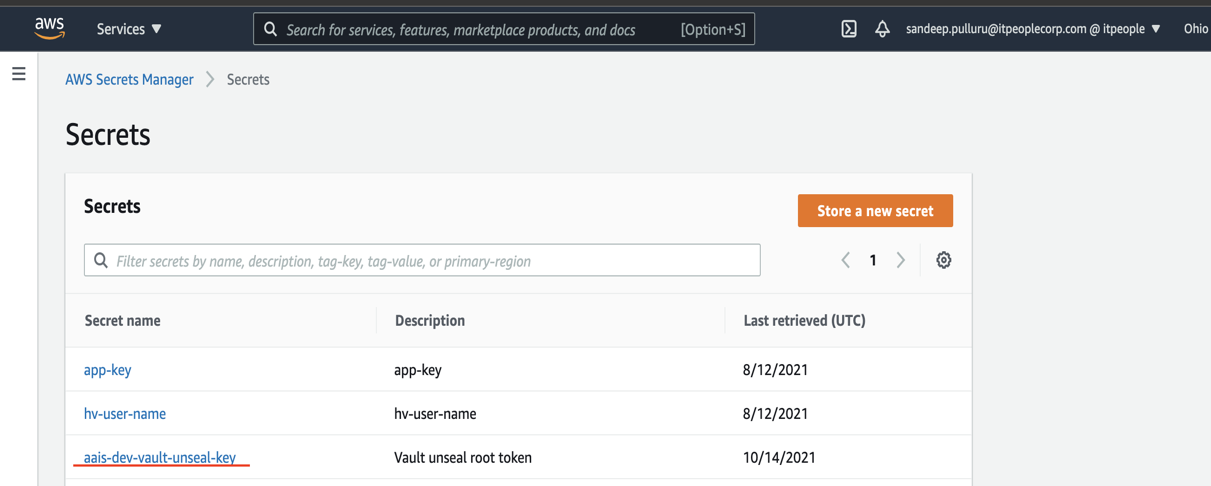
Click on retrieve secret value to get the vault root token
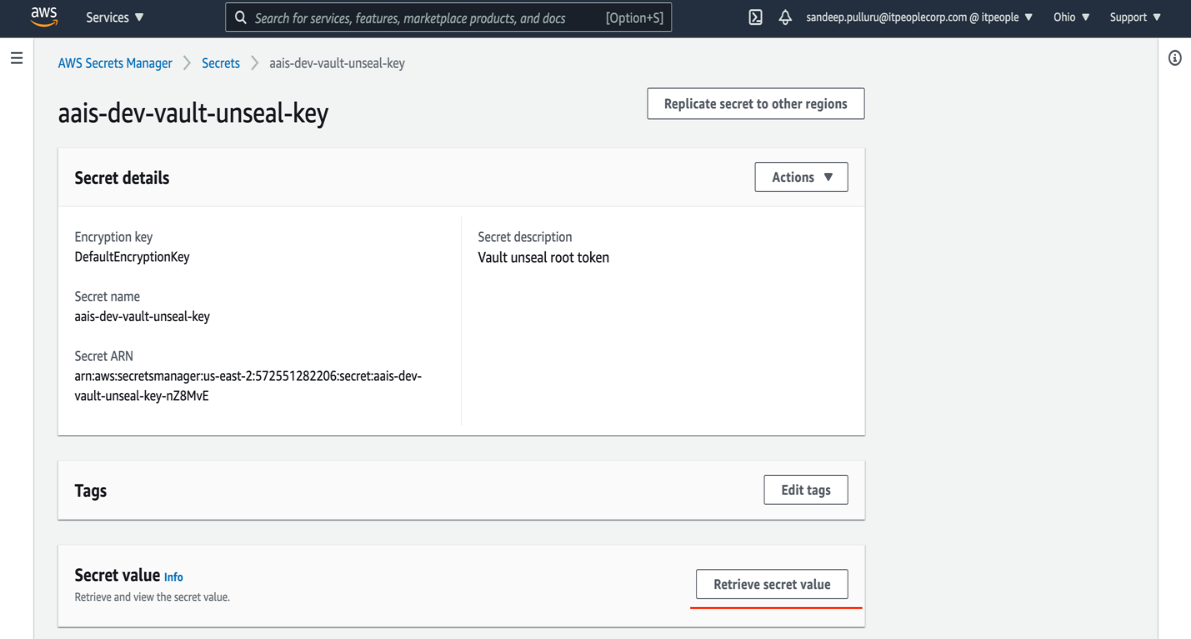
Setup port forward using below command
#kubectl -n vault port-forward svc/vault 8200:8200
Vault should be available at http://localhost:8200/
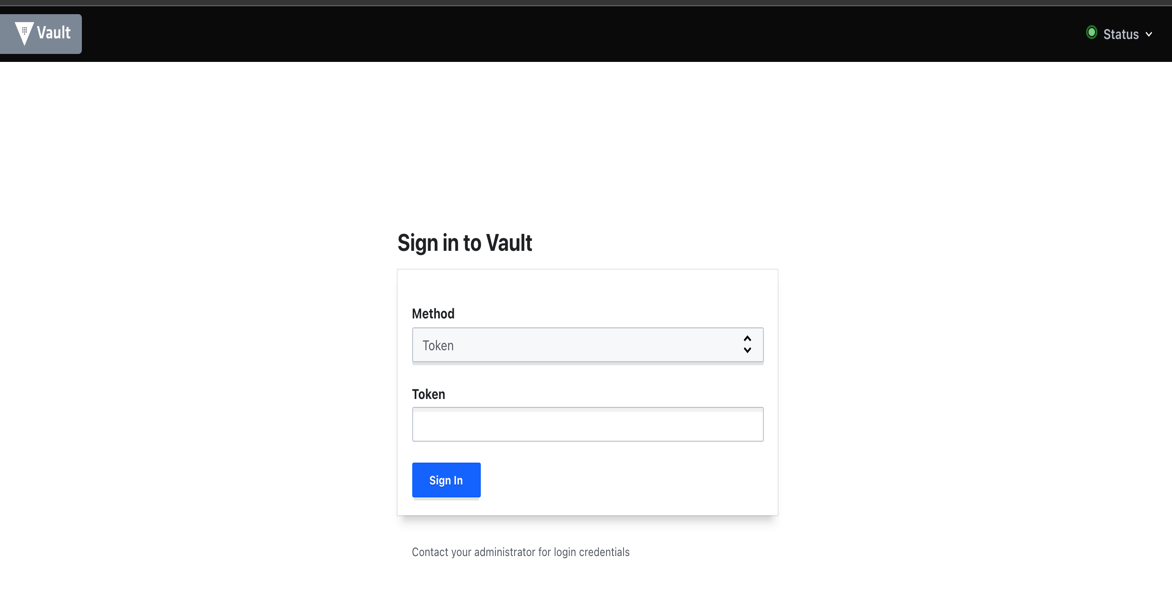
Login to vault using root token retrieved from AWS secret manager
Orderer TLS Certificate is available at the below path. Replace <orgname> with organization name
http://localhost:8200/ui/vault/secrets/<orgname=aais?>/show/crypto/peerOrganizations/<orgname>-net/orderer/tls
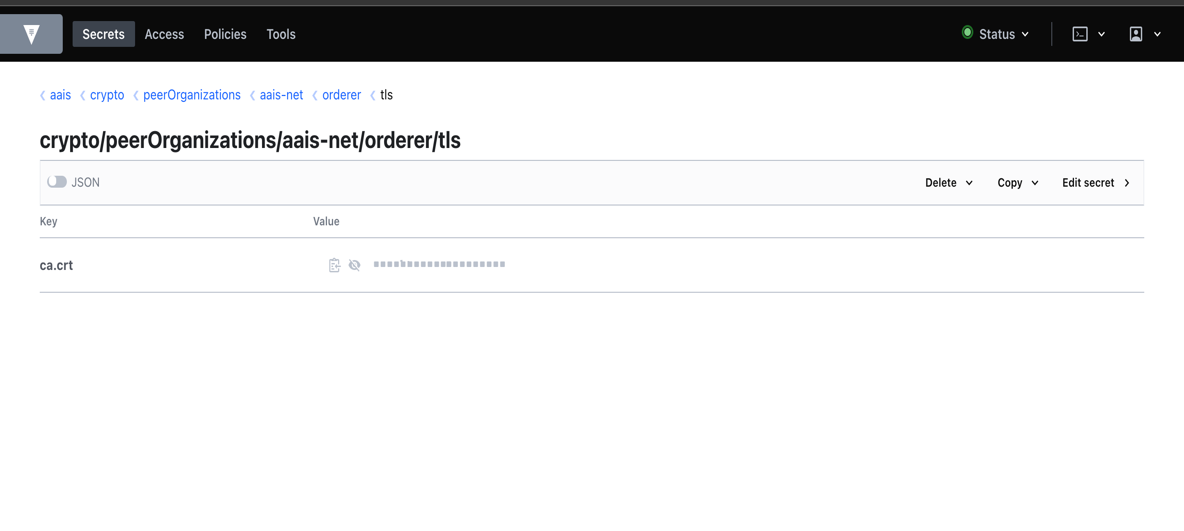
Copy the Orderer TLS Certificate and paste into file “orderer.pem”
Convert the Orderer TLS Certficate to base64
#cat “orderer.pem” | base64
Org MSP is available at below path. Replace <orgname> with organization name
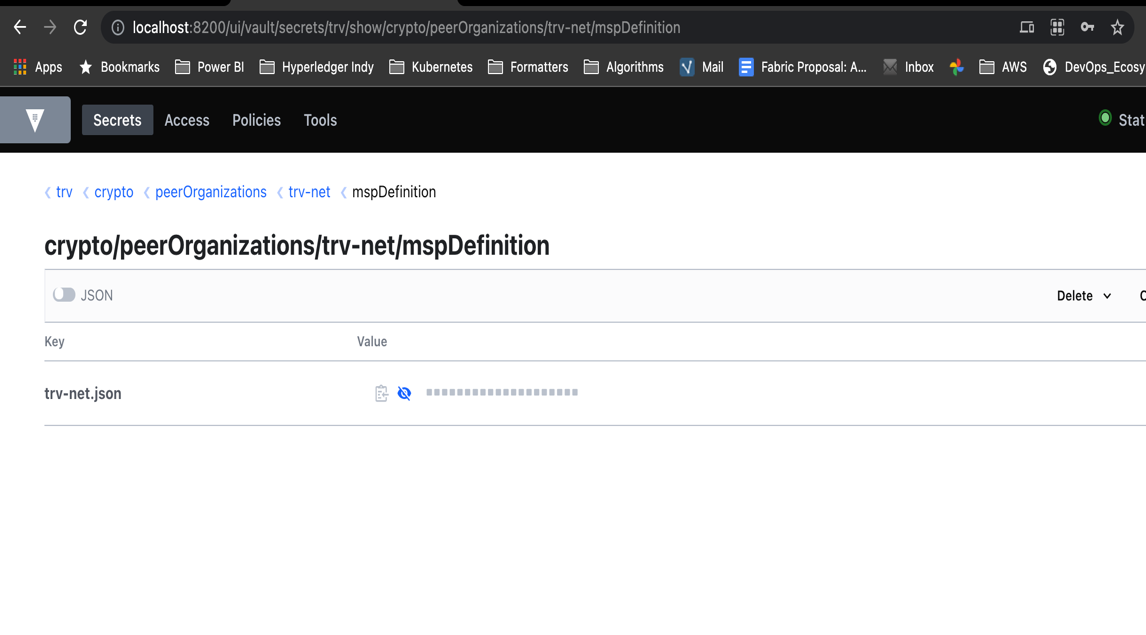
5.13. Create Secret using AWS Secret Manager
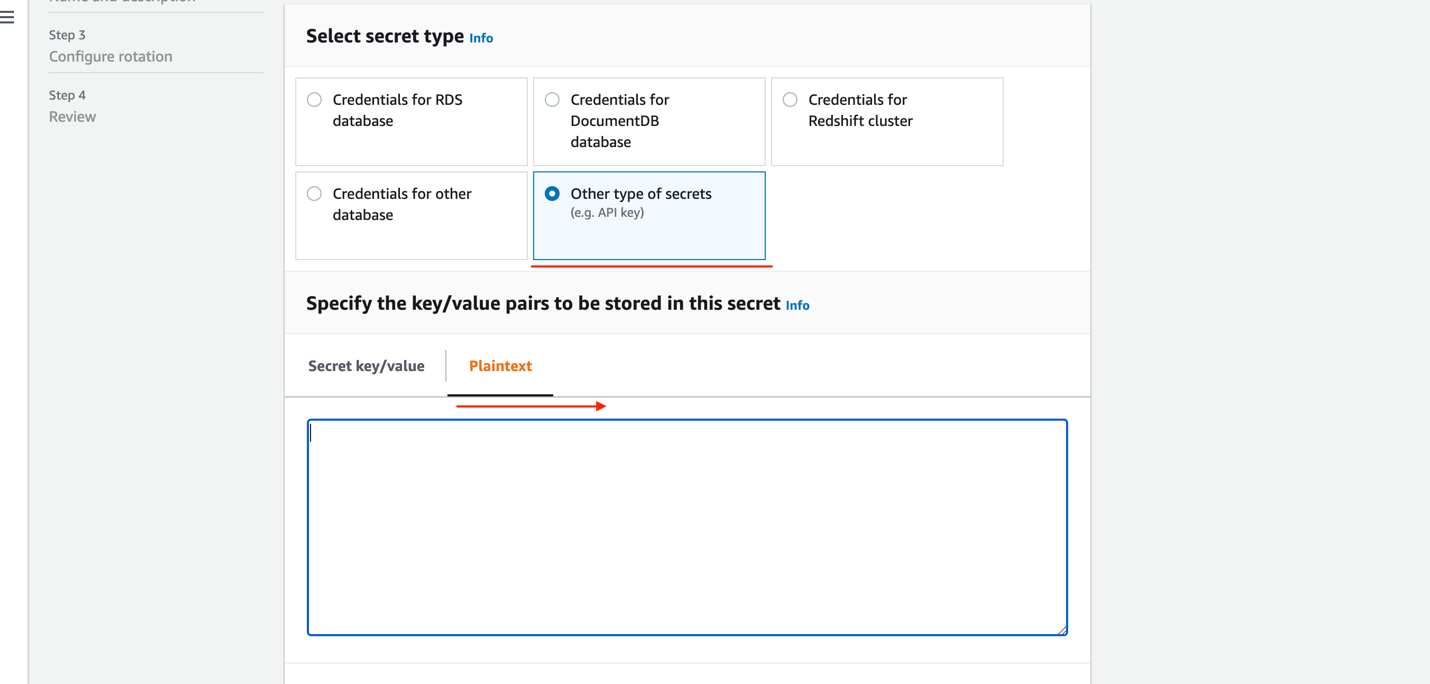
Click on “Store New Secret”
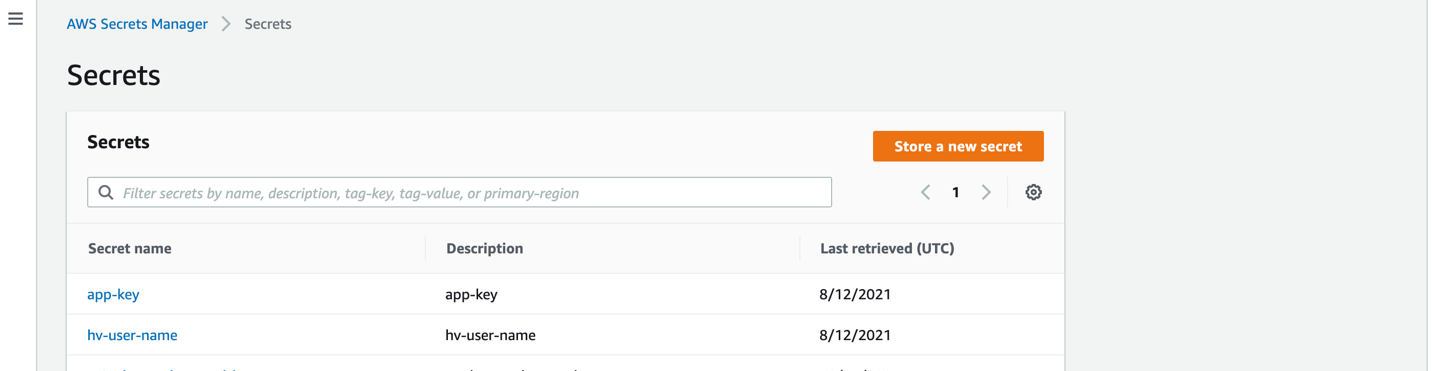
Select “Other type of Secrets” and use “Plaintext”
Orderer TLS Certificate is available in Vault and converted to base64 before pasting the content. (Refer to Connecting to Vault Cluster (Org MSP and Orderer TLS Certificate))
Org MSP is available in Vault and can be directly used (Refer to Connecting to Vault Cluster (Org MSP and Orderer TLS Certificate))
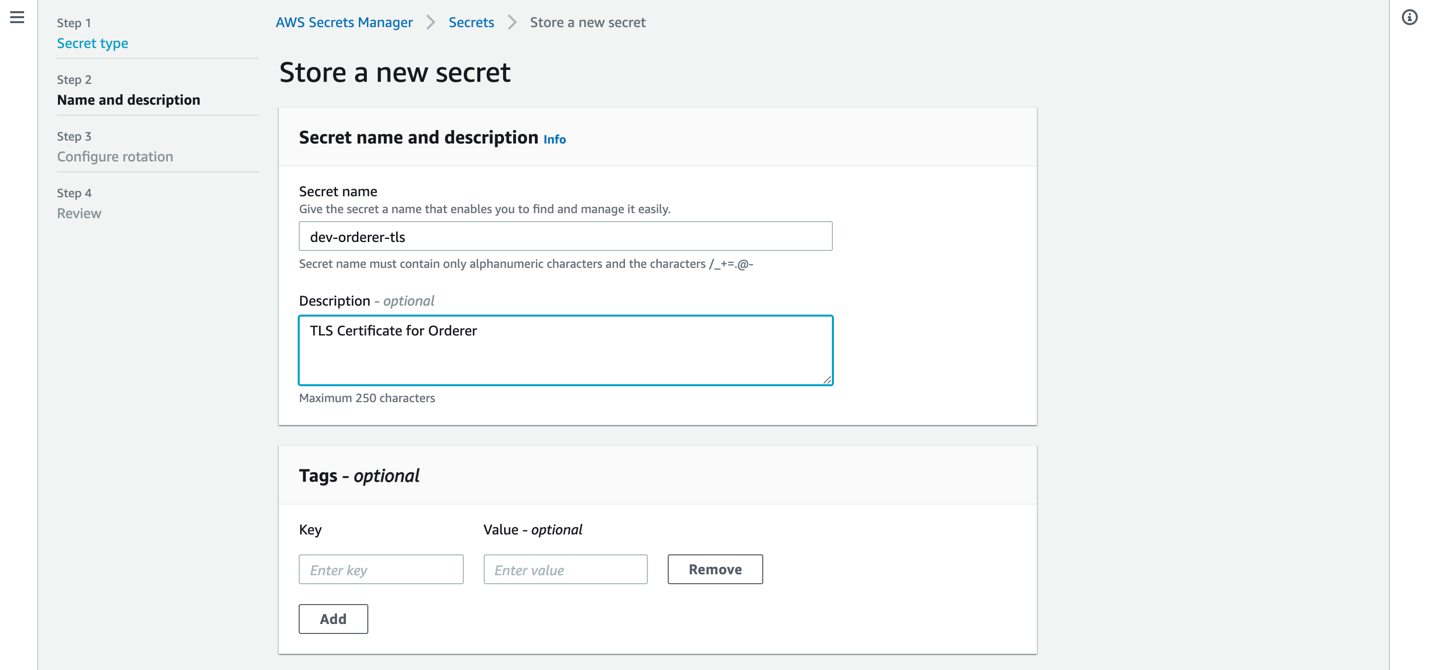
Enter Secret Name and Description
Orderer TLS Certificate: <env>-orderer-tls Ex: dev-orderer-tls
Org MSP : <env>-<orgname>-msp Ex: dev-analytics-msp
Disable automatic rotation
Complete creating the secret